
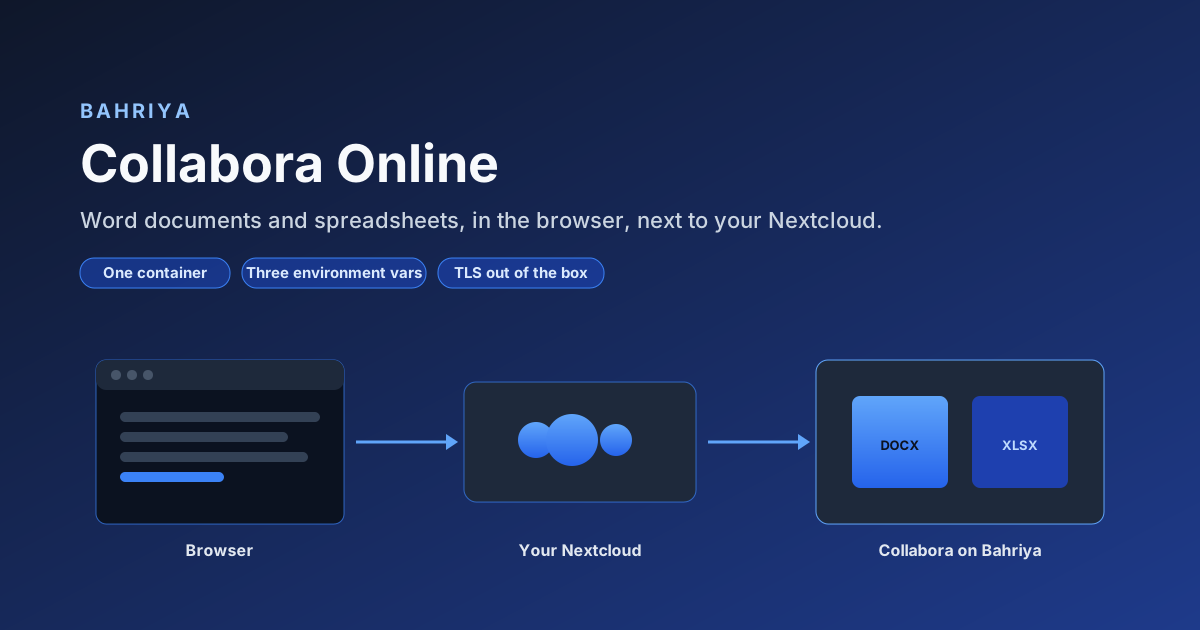
Editing Word documents and spreadsheets in the browser: Collabora Online on Bahriya
How to self-host Collabora Online for Nextcloud on Bahriya: five form fields and three environment variables replace a VM, reverse proxy and TLS setup.
Nextcloud gives you your own file storage. What it does not give you, on its own, is the ability to open a .docx in the browser and edit it. For that you need an editing server, and the usual candidate is Collabora Online — the browser-based office suite behind Nextcloud Office.
Collabora Online has a reputation for being awkward to self-host, and historically that reputation was earned. You provisioned a virtual machine, installed the packages, put a reverse proxy in front of it, terminated TLS, obtained a certificate, arranged for that certificate to renew, wrote a service unit, and then discovered that the proxy configuration needed a set of very particular WebSocket rules before anything worked at all.
None of that is necessary here. Collabora publishes an official container image, and a container image is precisely what Bahriya deploys. This article walks through the whole deployment — what we set, why each setting is what it is, and the same deployment expressed in the Reis CLI and in Terraform.
What the deployment actually involved
Select the region and the project, then fill in the container form. Five fields, and three environment variables.
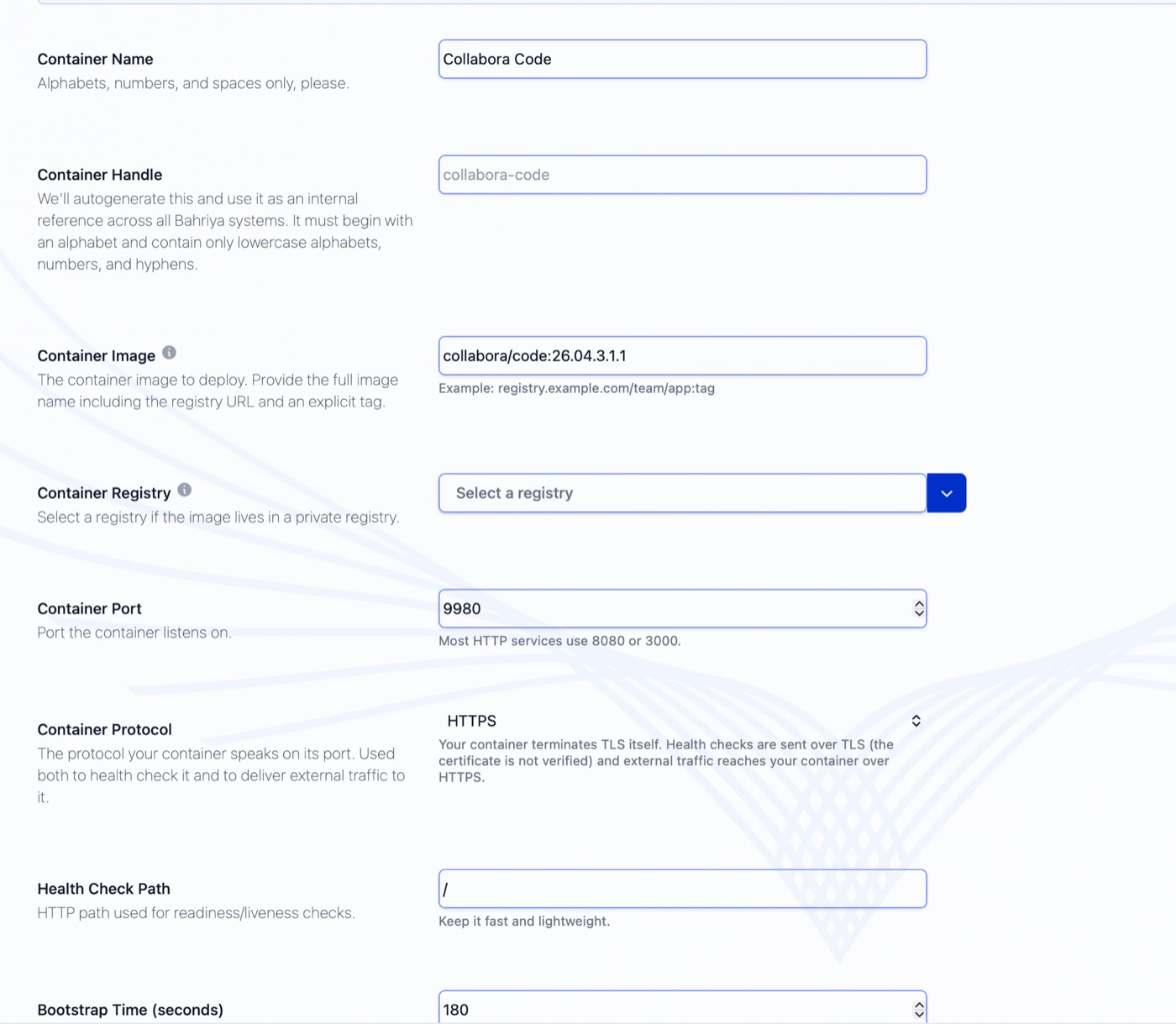
That is the entire deployment. Bahriya issues the hostname, obtains and renews the TLS certificate, health checks the container, and restarts it if it stops answering. Nextcloud is then pointed at the hostname, and documents open in the browser.
The settings that matter, and why
Container image — collabora/code:26.04.3.1.1. Collabora's official image, pinned to an explicit tag. Bahriya rejects an untagged image reference on purpose: an untagged deployment cannot tell you which build is running, and cannot be rolled forward deliberately. Pin the tag, and upgrade by changing it.
Container port — 9980. The port Collabora Online listens on. It is not one of the common defaults, which is exactly why the field exists.
Container protocol — HTTPS. This is the setting most worth understanding. The Collabora image terminates TLS itself, using a certificate it generates on first start. Setting the protocol to HTTPS tells the platform two things at once: send the health check over TLS without verifying the certificate, and deliver external traffic to the container over HTTPS rather than plain HTTP. Leave it at the default of http and the health check fails against a TLS listener, the container never reports healthy, and the deployment ends in an error state. One dropdown replaces the block of proxy configuration this normally requires.
Health check path — /. Collabora answers at the root, which is fast and cheap to probe. The platform uses this for both readiness and liveness, so it wants a path that responds quickly and does no real work.
Bootstrap time — 180 seconds. Collabora Online is not a fast starter; it generates its certificate and warms up its document conversion machinery before it will answer anything. Bootstrap time tells the platform how long to allow for that first start before treating silence as a failure. Set it too low and a perfectly healthy container is killed mid-boot and restarted forever. Three minutes is comfortable.
Environment variables. Three of them, all lowercase, all read by Collabora itself:
aliasgroup1— the origin of the Nextcloud instance that is allowed to use this editing server, including the scheme and port:https://cloud.example.com:443. Collabora refuses requests from any origin not in an alias group, so this is the setting that actually connects the two systems. Additional instances go inaliasgroup2,aliasgroup3, and so on.usernameandpassword— the credentials for Collabora's own administration console, which reports live editing sessions, connected documents and memory use. Keep the password in a project secret rather than in plain text; both the CLI and Terraform examples below do exactly that.
Sizing and replicas
Collabora holds each open document in memory in the process serving it, and co-editing works because everyone editing a document is talking to the same instance. Two consequences follow.
First, give it room. A single replica with roughly 1 CPU and 2 GB of memory is a sensible starting point for a small team; watch the administration console and the container's metrics under real use, and adjust from there.
Second, keep it to one replica in one region, at least to begin with. Spreading an editing server across replicas or regions means two people opening the same document can land on different instances, and each will believe they are editing alone. If you want it close to your users, put it in the region nearest your Nextcloud instance rather than in several.
Pointing Nextcloud at it
Once the container reports healthy, it has a hostname of the form:
collabora.falkenstein-1.x.on.bahriya.appIn Nextcloud, install the Nextcloud Office app, open its administration settings, choose Use your own server, and enter that hostname with https:// in front of it. Save. Nextcloud fetches the editor's capabilities from the server, reports success, and from that point onwards documents in Files open in the browser.
Collabora's administration console lives at /browser/dist/admin/admin.html on the same hostname, and the username and password you set are what it asks for.
Two things to check if the connection is refused rather than accepted:
- The value of
aliasgroup1must match your Nextcloud origin exactly — scheme, host and port. A mismatch here is by far the most common cause of failure. - Collabora calls back into Nextcloud to read and save documents. If your Nextcloud sits behind an IP allow-list, the editing server needs to be on it.
The same deployment from the Reis CLI
Everything above is available declaratively. Two documents in one file — the secret, then the container:
kind: secret
project: office
handle: collabora-admin-password
name: Collabora Admin Password
value: change-me-to-something-long

---

kind: container
project: office
handle: collabora
name: Collabora Code
image: collabora/code:26.04.3.1.1
type: http
regions:
  - falkenstein-1

workload:
  cpu: "1000"
  memory: "2048"
  port: "9980"
  protocol: https
  healthcheck: /
  bootstraptime: 180
  env:
    aliasgroup1: "https://cloud.example.com:443"
    username: admin
  secrets:
    password: collabora-admin-password

scaling:
  replicas: "1"
Apply it:
reis apply -f collabora.ymlRe-applying the same file after changing the image tag is how you upgrade Collabora. Reis looks the container up by handle, sends only the fields whose values changed, and leaves the rest alone.
If you would rather not keep a file, the same deployment as flags:
reis container:create \
  --project office \
  --handle collabora \
  --name "Collabora Code" \
  --image collabora/code:26.04.3.1.1 \
  --type http \
  --port 9980 \
  --protocol https \
  --healthcheck / \
  --bootstraptime 180 \
  --cpu 1000 \
  --memory 2048 \
  --regions falkenstein-1 \
  --env "aliasgroup1=https://cloud.example.com:443" \
  --env "username=admin" \
  --secrets "password=collabora-admin-password"
The same deployment in Terraform
variable "collabora_admin_password" {
  type      = string
  sensitive = true
}

resource "bahriya_project" "office" {
  handle  = "office"
  name    = "Office"
  regions = ["falkenstein-1"]
}

resource "bahriya_secret" "collabora_admin" {
  handle = "collabora-admin-password"
  name   = "Collabora Admin Password"
  value  = var.collabora_admin_password
}

resource "bahriya_container" "collabora" {
  handle          = "collabora"
  name            = "Collabora Code"
  image           = "collabora/code:26.04.3.1.1"
  containerport   = "9980"
  protocol        = "https"
  healthcheckpath = "/"
  bootstraptime   = 180
  mincpu          = "1000"
  minmemory       = "2048"

  autoscalingminreplicas = "1"
  activeregions          = ["falkenstein-1"]
  project                = bahriya_project.office.id

  newenvvar = [
    { key = "aliasgroup1", value = "https://cloud.example.com:443" },
    { key = "username", value = "admin" },
  ]

  secretsenvvar = [
    { name = "password", secret = bahriya_secret.collabora_admin.handle },
  ]
}

output "collabora_hostname" {
  value = bahriya_container.collabora.defaulthostname
}
A custom domain, if you would prefer office.example.com to the issued hostname, is one more block:
  hostnames = [
    { hostname = "office.example.com" },
  ]
Point a CNAME at the target shown in the console, and the certificate is issued and renewed for you. Remember to update aliasgroup1 — and the server URL in Nextcloud — if you change the hostname Nextcloud talks to.
What this replaces
The interesting part of this deployment is not what was configured. It is what was not.
There is no virtual machine to patch, no reverse proxy configuration, no certificate to obtain or renew, no service unit, and no WebSocket rules to get subtly wrong. The awkward parts of self-hosting Collabora Online were never Collabora's fault — they were the cost of putting a container on the public internet safely. That cost is what a container platform is for.
Collabora Online is one example. The same five fields deploy anything that speaks HTTP, terminates its own TLS or does not, and takes its time to start. If you have been running a service on a virtual machine because the surrounding infrastructure was the difficult part, it is worth a second look.
Related reading
- HTTP containers — the full set of options on the container form
- Health checks — protocols, paths and bootstrap time
- Environment variables — plain values and project secrets
- Deploy an HTTP container with YAML — the Reis reference
- Deploy an HTTP container with Terraform — the Terraform reference
From the knowledgebase